Correction invoice (korekta)
Issue a correction from the invoice page: More actions → Issue correction. Enter a reason, fix the lines and issue; the original is then marked Corrected.
You fix an issued VAT invoice or bill with a correction invoice: on the invoice page choose More actions → Issue correction, enter a reason and the new line values.
Where to find it: Invoices → open an issued invoice → More actions → Issue correction.
Steps
- Open an issued VAT invoice or bill.
- Click More actions → Issue correction. If a draft correction already exists, you will see Continue correction.
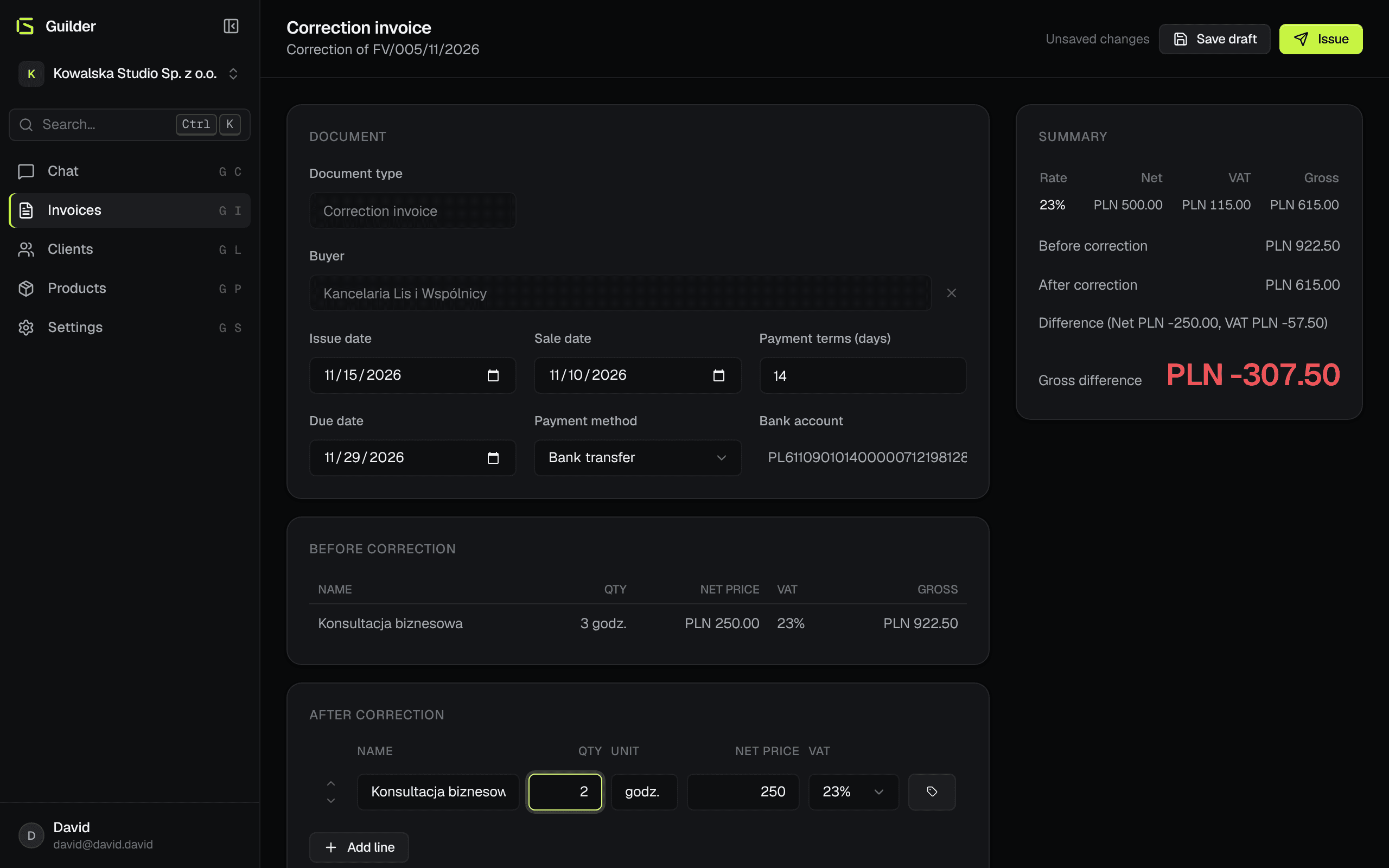
- In the "Correction invoice" editor enter Reason for correction. The field is required and is printed on the document.
- In After correction change quantities, prices or rates. Before correction shows the original.
- Check the Summary: "Before correction", "After correction" and "Gross difference".
- Click Issue. In the "Issue this correction?" dialog confirm with Issue.
Rules
- For a full (zeroing) correction set quantities to 0. Only a correction may have quantity 0.
- Amounts on a correction are differences: negative means a refund, positive an extra charge.
- After issuing, the original is marked Corrected, and its page shows a "Corrections" section.
- You correct a VAT invoice or a bill. A proforma is not corrected.
- An invoice sent to KSeF can only be fixed with a correction. A correction can be sent to KSeF once the original has a KSeF number (sending to KSeF).
- Correction notes (noty korygujące) no longer exist in KSeF since 1 February 2026. The app does not support them (details).
Related articles
- Cancel or correct: which to useYou can cancel only an invoice that never reached KSeF and has no payments; otherwise issue a correction. A cancelled invoice keeps its number in the series.
- Send an invoice to KSeF and get a KSeF numberSend an issued VAT invoice or correction with Send to KSeF on its page; once accepted it gets a KSeF number and a QR code on the PDF. It cannot be undone.
- What KSeF is and when it became mandatoryKSeF is the Polish e-invoicing system: mandatory since 1 February 2026 for the largest taxpayers and 1 April 2026 for the rest; small sellers have until 2027.