Send an invoice to KSeF and get a KSeF number
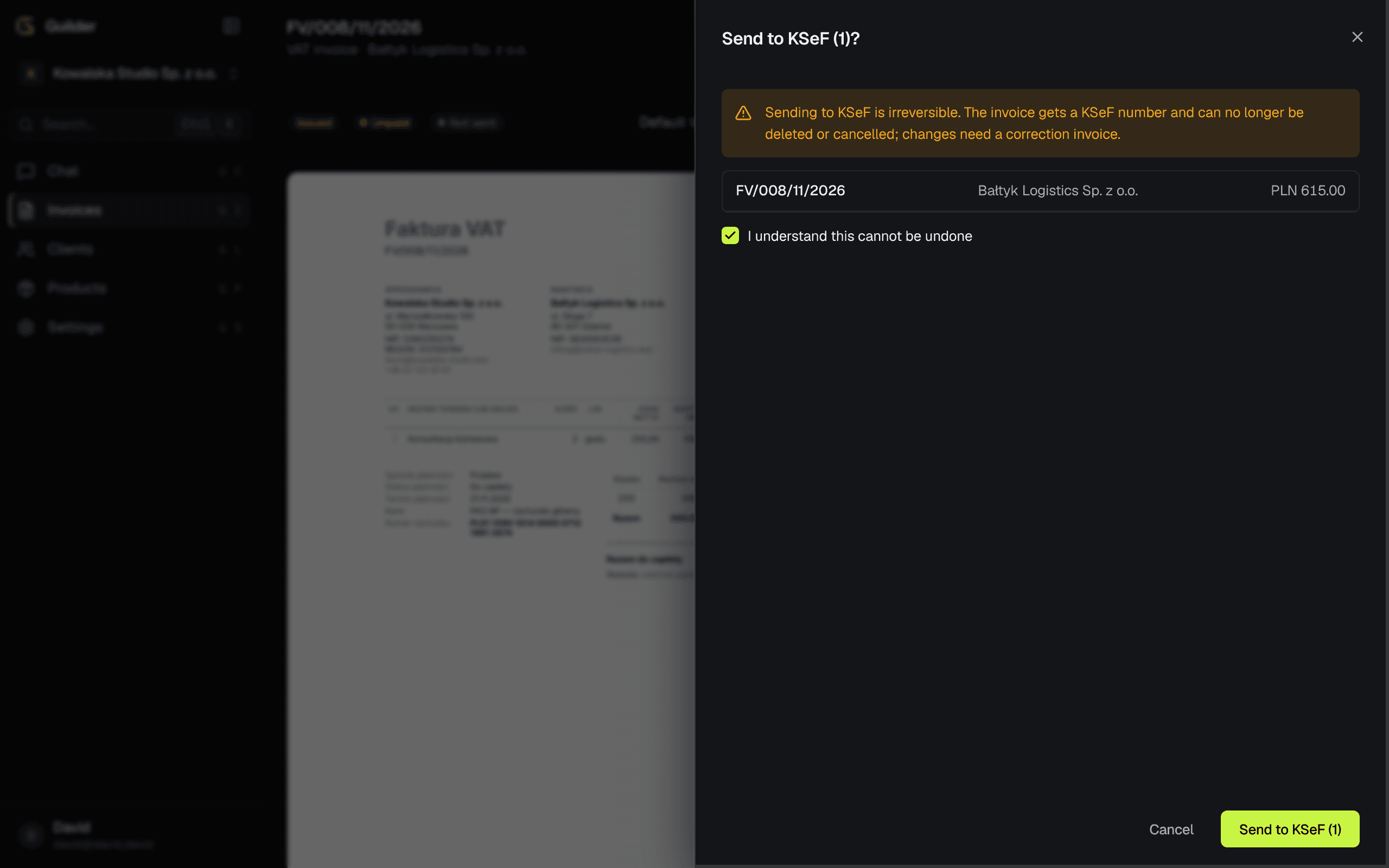
Send an issued VAT invoice or correction with Send to KSeF on its page; once accepted it gets a KSeF number and a QR code on the PDF. It cannot be undone.
You send an issued VAT invoice or correction to KSeF with Send to KSeF on its page; once accepted, the invoice gets a KSeF number and the PDF a QR code.
Where to find it: Invoices → open an invoice → Send to KSeF. To send many, use "Send to KSeF (count)" on the list. Owners, admins and accountants have the permission.
Steps
- Make sure the KSeF connection is active.
- Open an issued invoice or correction that was not sent yet.
- Click Send to KSeF.
- In the "Send to KSeF?" dialog tick I understand this cannot be undone and confirm.
- The status moves from Queued through Sent to Accepted. You can follow it in the KSeF section and on the timeline.
- After acceptance you will see the KSeF number, and the PDF gains the KSeF number and a QR code.
Rules
- Only VAT invoices and corrections go to KSeF. A proforma and a bill do not.
- You can send a correction only once the original is Accepted and has a KSeF number.
- An accepted invoice cannot be deleted or cancelled. You fix it with a correction.
- The UPO (official confirmation of receipt) is stored with the invoice. Viewing the UPO in the interface is not available yet.
- Sending works online. The app sends to the environment that is active in Settings, so check it is not the test one first.
Related articles
- Connect to KSeF: token and environmentConnect your company to KSeF at Settings → KSeF: pick an environment, paste a token from the Taxpayer Application, click Save token, then Verify.
- KSeF errors: rejection, retry, validationWhen KSeF rejects an invoice the status is Rejected and final for that send; after a transient failure use Retry KSeF. An FA(3) validation error blocks issuing.
- Correction invoice (korekta)Issue a correction from the invoice page: More actions → Issue correction. Enter a reason, fix the lines and issue; the original is then marked Corrected.