Connect to KSeF: token and environment
Connect your company to KSeF at Settings → KSeF: pick an environment, paste a token from the Taxpayer Application, click Save token, then Verify.
The KSeF connection is a token from the KSeF Taxpayer Application pasted into Settings → KSeF; you save a separate token for each environment: test, demo and production.
Where to find it: Settings → KSeF. Owners and admins can change the settings.
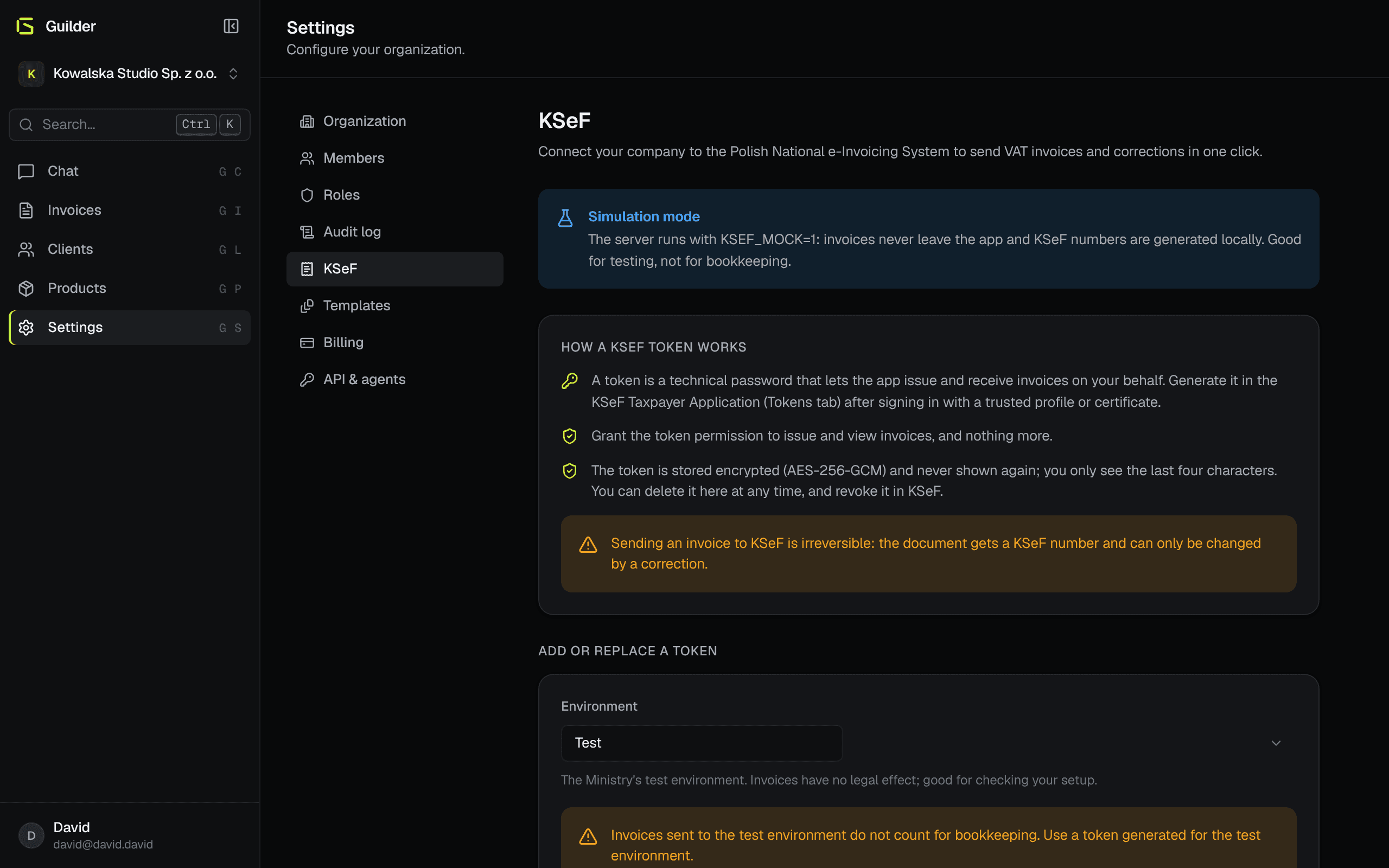
Steps
- In the KSeF Taxpayer Application sign in with a trusted profile or a certificate and generate a token in the Tokens tab. Grant it permission to issue and view invoices, and nothing more.
- In Guilder Desk open Settings → KSeF → Add or replace a token.
- Choose the Environment: Test, Demo or Production. The token must come from the same environment.
- Paste the value into KSeF token. Context NIP defaults to your company NIP. If it is empty, fill in the NIP first under Settings → Organization.
- Click Save token. The new token replaces the previous one for that environment and makes it Active.
- Under Saved connections click Verify. The message "Connection works" means you can send.
Tips
- Start with the test environment. Its invoices have no legal effect.
- Production is binding and irreversible. The app warns you on screen.
- The token is stored encrypted (AES-256-GCM) and never shown again. You only see the last four characters.
- Delete removes the token from the app. Also revoke it in KSeF.
- Without a saved token, sending to KSeF is blocked.
Related articles
- Send an invoice to KSeF and get a KSeF numberSend an issued VAT invoice or correction with Send to KSeF on its page; once accepted it gets a KSeF number and a QR code on the PDF. It cannot be undone.
- KSeF errors: rejection, retry, validationWhen KSeF rejects an invoice the status is Rejected and final for that send; after a transient failure use Retry KSeF. An FA(3) validation error blocks issuing.
- Team and roles: invitations and permissionsInvite people at Settings → Members → Invite people; a role (owner, admin, accountant, member, viewer) decides what they can issue and change.