Your first invoice
Issue your first invoice at Invoices → New invoice: pick a buyer, add lines, check the summary and click Issue. Drafts save automatically as you type.
You can issue your first invoice in a few minutes: open the form, pick a buyer, add lines and confirm with Issue.
Where to find it: Invoices → New invoice. You can also ask the AI assistant to prepare a draft.
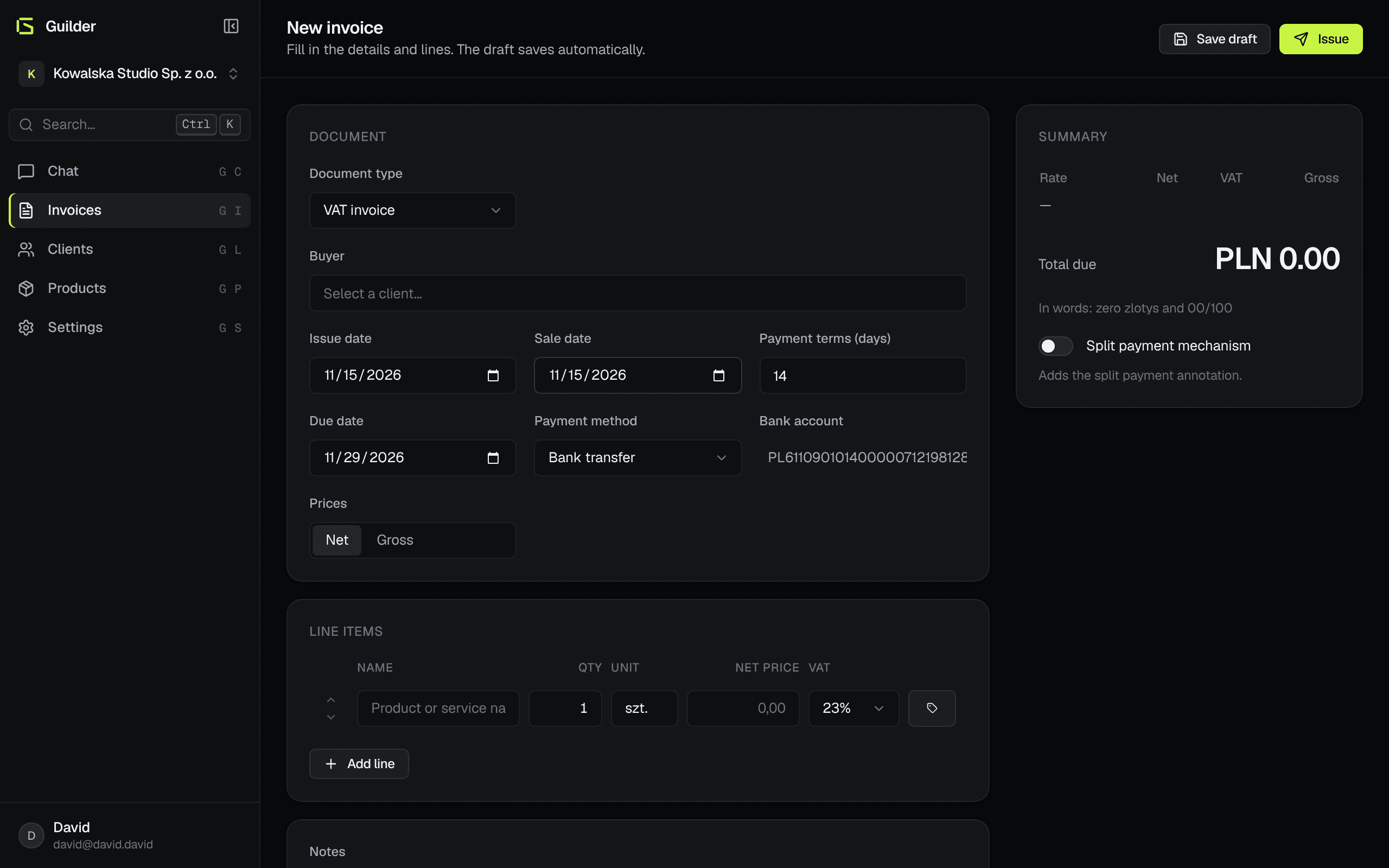
Steps
- Open Invoices and click New invoice.
- In Document choose Document type (VAT invoice by default) and Buyer. Add a missing client with "Add new client".
- Check Issue date, Sale date, Payment terms (days), Payment method and Bank account.
- In Line items click Add line. Enter the name (the app suggests saved products), quantity, Unit, net price and VAT rate. The Prices field switches entry from net to gross.
- Review the Summary: rates, Net, VAT, Gross, Total due and In words.
- Click Issue. The "Issue this invoice?" dialog shows the number and the total. Click Issue again.
Tips
- Drafts save automatically. The status at the top reads "Saving…" and then "Saved at 14:32".
- An issued invoice is immutable and takes the next number in the series. You fix it with a correction invoice.
- Issuing is irreversible. Check the buyer and the amounts first.
- The Free plan allows 25 issued invoices per month.
Related articles
- VAT invoice: rates, split payment and exemptionsA VAT invoice supports rates 23, 8, 5, 0, zw, np and oo, net or gross prices, split payment from 15,000 PLN with Annex 15 goods, and an exemption basis for zw.
- Invoice numberingChange the number pattern at Settings → Organization → Document numbering → Change pattern: use tokens like {NNN}, {MM}, {YYYY} and pick when numbering resets.
- AI assistant: invoicing from chatThe assistant in the Chat menu drafts invoices, finds clients and runs summaries; issuing, KSeF sending and payments need your confirmation on a card.