Payments and overdue invoices
Record a payment on the invoice page (More actions → Record payment) or click Mark as paid; when the due date passes, the status becomes Overdue.
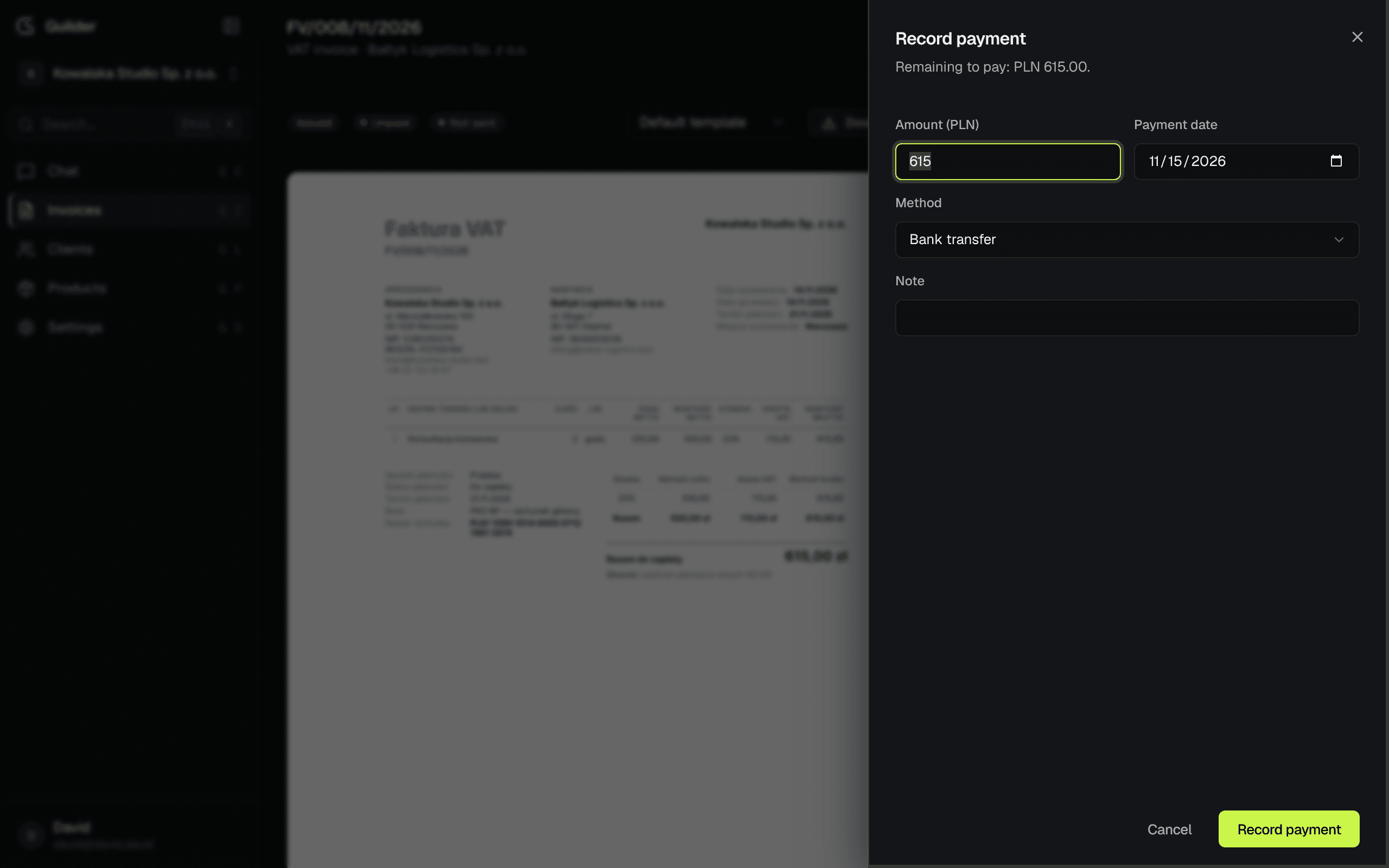
You record a payment on the invoice page: Mark as paid books the whole remaining amount, while Record payment lets you enter a partial payment.
Where to find it: Invoices → open the invoice → Mark as paid button or the More actions menu → Record payment.
Steps
- Open an issued invoice.
- For a full payment click Mark as paid. The app books the remaining amount with today's date.
- For a partial payment choose More actions → Record payment.
- Enter Amount (PLN), Payment date, Method (Bank transfer, Cash, Card, BLIK, Other) and optionally Note.
- Click Record payment. The status becomes Partial or Paid.
- To fix a mistake, delete the entry in the Payments section with Delete payment.
Payment statuses
- Unpaid, Partial, Paid, Overdue.
- Overdue appears when the due date has passed and the invoice is not fully paid.
- Filter the invoice list by the Payment column. The summary shows "Outstanding" and "Overdue" amounts.
- To mark many invoices at once, select the rows and click Mark paid.
Tips
- A payment cannot exceed the balance. The app shows "Amount exceeds the balance".
- Negative correction invoices (refunds) are not receivables, so they have no payment status.
- An invoice with payments must be cleared first: cancelling works only without payments.
Related articles
- VAT invoice: rates, split payment and exemptionsA VAT invoice supports rates 23, 8, 5, 0, zw, np and oo, net or gross prices, split payment from 15,000 PLN with Annex 15 goods, and an exemption basis for zw.
- Download an invoice PDFDownload an invoice PDF from the invoice page with Download PDF; once KSeF accepts it, the PDF carries the KSeF number and a QR code. E-mailing is not built in.
- AI assistant: invoicing from chatThe assistant in the Chat menu drafts invoices, finds clients and runs summaries; issuing, KSeF sending and payments need your confirmation on a card.