PDF templates, logo and accent colour
Choose the PDF layout, logo, accent colour and font at Settings → Templates; the Free plan has the Minimal template, Pro unlocks Classic, Bold and Compact.
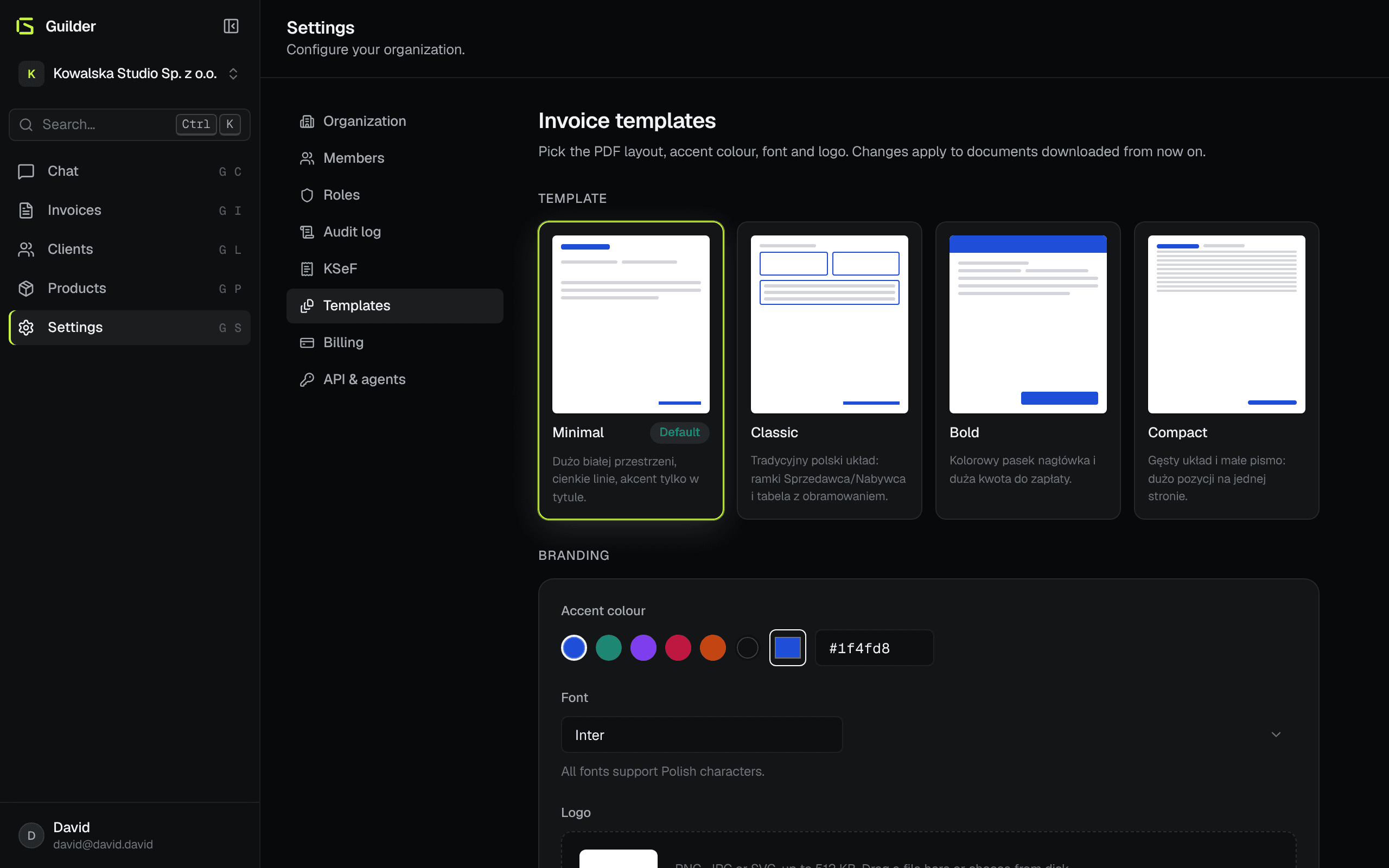
You set the look of your invoices under Settings → Templates: pick one of four layouts, an accent colour, a font and a logo, and the preview updates live.
Where to find it: Settings → Templates. Owners and admins can edit, everyone can see the preview.
Steps
- Open Settings → Templates.
- In Template choose a layout: Minimal (lots of white space), Classic (traditional Polish layout), Bold (coloured header) or Compact (dense layout).
- In Branding pick the accent colour or enter your own as
#RRGGBB, and choose the Font. All fonts support Polish characters. - Add or change the Logo (PNG, JPG or SVG, up to 512 KB). The logo saves immediately.
- Check the preview and click Save changes. Discard changes restores the earlier state.
Tips
- Changes apply to newly downloaded documents. Issued invoices keep their data, but the PDF is rendered with the current template.
- The Free plan includes the Minimal template. The others carry a Pro badge. See plans and billing.
- Company registry data (KRS, court, share capital) is printed on the invoice if you fill it in the company profile.
Related articles
- Download an invoice PDFDownload an invoice PDF from the invoice page with Download PDF; once KSeF accepts it, the PDF carries the KSeF number and a QR code. E-mailing is not built in.
- Plans, limits and billingThe Free plan has 2 seats, 25 invoices and 50 assistant messages a month. Pro at PLN 29 per seat per month removes limits and adds API and MCP.
- Sign up and set up your company profileCreate an account with your e-mail, confirm it and run the four-step wizard: your NIP pulls company data from the MF white list, and the rest takes minutes.